EDDY Usage
- Ensure your printer is not leaking electricity before use.
- If you have previously configured
eddy,Probe, orBL-Touch, please delete those configurations. - When installing Eddy, the coil should be above the nozzle and at a distance of
2mm-3mmfrom the nozzle. - Do not turn on the heated bed during testing.
- Multi-Z axis machines require manual leveling to be done properly once.
Wiring Diagram
- Install with the logo facing the heated bed direction.
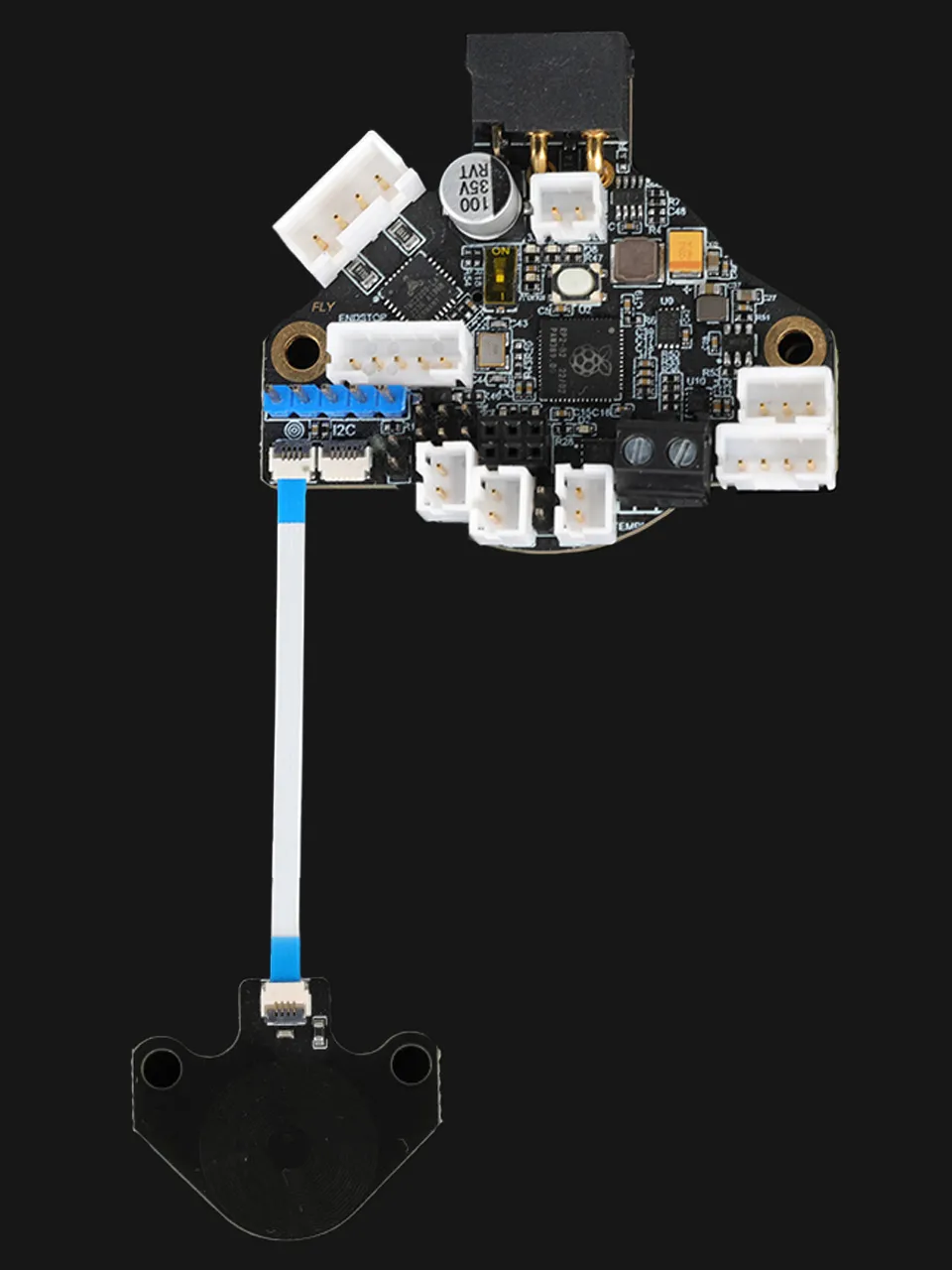
Reference Configuration
- The
XYoffset values need to be calculated based on the scanning module and the nozzle itself, then modified in the offset values below. - The
Zoffset value must ensure that the physical height difference between the probe coil and the nozzle tip is within the recommended range of2~3mm.
[stepper_z]
endstop_pin: probe:z_virtual_endstop
# position_endstop: -0.5

[probe_eddy_current fly_eddy_probe]
sensor_type: ldc1612
i2c_address: 43
i2c_mcu: SHT36
i2c_bus: i2c1e
x_offset: 0     # Remember to set the X offset
y_offset: 21.42 # Remember to set the Y offset
z_offset: 2.5
i2c_speed: 4000000

[temperature_probe fly_eddy_probe]
sensor_type: Generic 3950
sensor_pin:SHT36:gpio28
horizontal_move_z: 2.5
Coil Model Download Links
- Click the download link below
-
Loading...
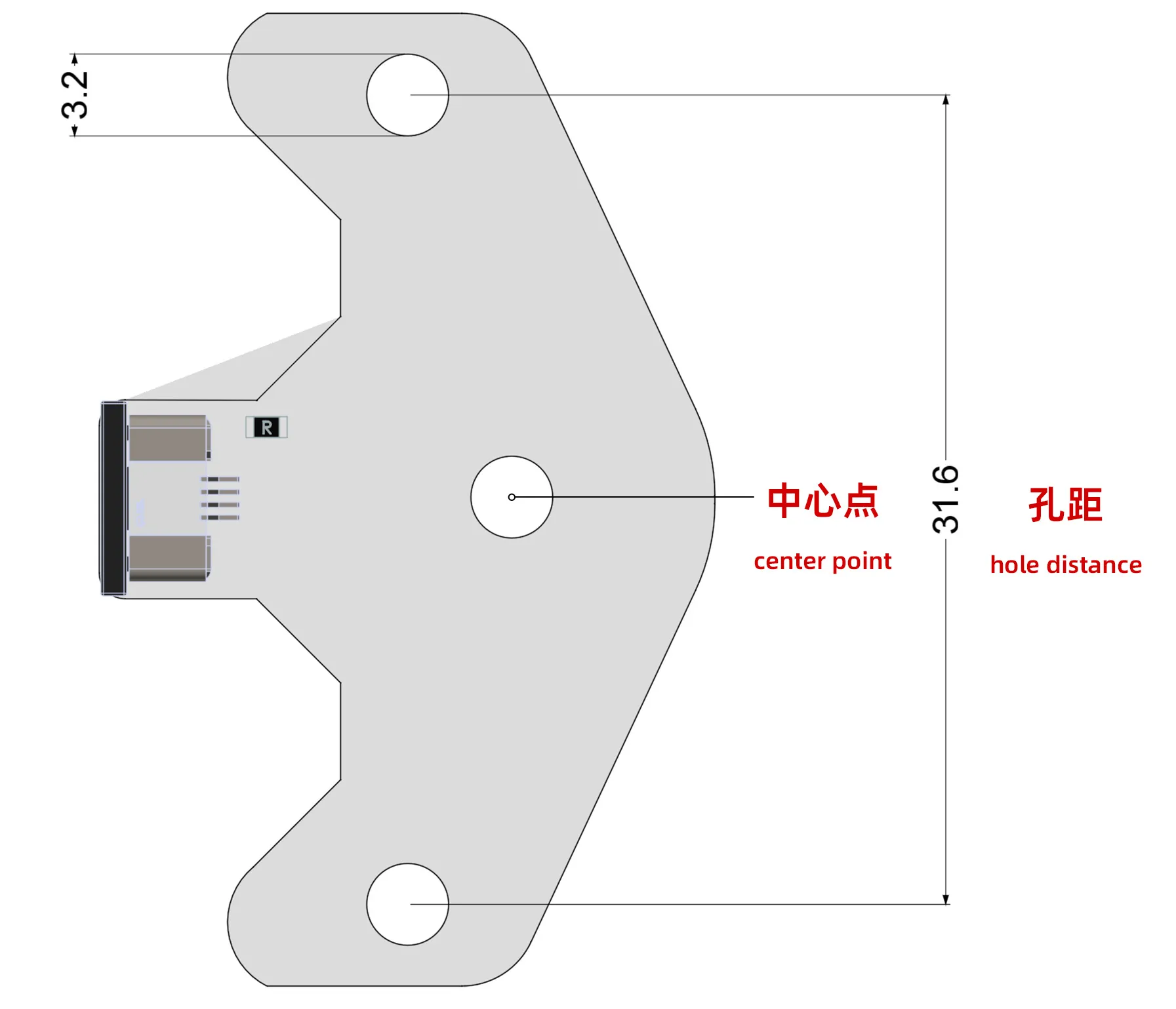
Calculate XY Offset Values
- After downloading the model, please calculate the XY offset values based on your printer's actual conditions.
- After measuring, modify the
x_offsetandy_offsetvalues in the configuration.
Eddy Calibration
Precautions
- Ensure there is no configuration for
Probe,BL-Touch, or similar. - Multi-Z axis machines require manual leveling once.
- Before calibration, check that the heatbed is clear of debris and the nozzle is clean.
Add Configuration
⚠️ Important Reminders:
- The configuration below is temporary and must be deleted or commented out after use.
- After adding, click
Save & Restartto save and reboot. - It must be added to the very top of the
printer.cfgfile. Do not add it to the bottom.
[force_move]
enable_force_move: true

[gcode_macro _LDC_CALIBRATE_DRIVE_CURRENT]
gcode:
    BED_MESH_CLEAR
    SET_KINEMATIC_POSITION x=100 y=100 z=10
    G28 X Y
    M104 S0
    M140 S0
    M106 S0
    G0 X{printer.toolhead.axis_maximum.x / 2} Y{printer.toolhead.axis_maximum.y / 2} F6000
    G0 Z30 F600
    G4 P1000
    LDC_CALIBRATE_DRIVE_CURRENT CHIP=fly_eddy_probe
    G4 P1000
    SAVE_CONFIG

[gcode_macro PROBE_EDDY_CURRENT_CALIBRATE_AUTO]
gcode:
    BED_MESH_CLEAR
    G28 X Y
    M104 S0
    M140 S0
    M106 S0
    G90 # Abs positioning
    G1 X{ printer.toolhead.axis_maximum.x/2 } Y{ printer.toolhead.axis_maximum.y/2 } F6000
    {% if 'z' not in printer.toolhead.homed_axes %}
        SET_KINEMATIC_POSITION Z={ printer.toolhead.axis_maximum.z-1 } # Allows the user to work it down until it touches.
    {% endif %}
    PROBE_EDDY_CURRENT_CALIBRATE {rawparams}
Drive Current Calibration
- Enter the following command in the web console:
_LDC_CALIBRATE_DRIVE_CURRENT - The printer will move to the center position and lift the printhead away from the heatbed.
- It will then automatically start drive current calibration and save the results upon completion.
- Finally, Klipper will restart.
Calibrate Height
- Multi-Z axis machines require manual leveling once before calibrating height.
- For multi-Z axis machines, after completing height calibration, perform leveling once, then recalibrate height (recommended).
- Before calibration, check that the heatbed is clear of debris and the nozzle is clean.
-
Enter the following command in the web console:
PROBE_EDDY_CURRENT_CALIBRATE_AUTO CHIP=fly_eddy_probe -
The printer will move to the center position, and a dialog box will pop up.
-
After executing this command, the
Zheight displayed byKlipperis not important; you only need to adjust the nozzle to a suitable height. -
Follow the prompts in the
klipper UIto gradually lower the nozzle until it contacts a piece of paper placed on the print bed. Ensure the paper can slide smoothly under appropriate pressure while feeling slight friction. -
Be careful to avoid applying excessive pressure or damaging the print bed during this process.
-
Upon completion, click the
ACCEPTbutton in the dialog box. The system will begin calibrating the EDDY height. -
After calibration is complete, click the
SAVE_CONFIG & Restartbutton in the upper right corner of the webpage. This will save the configuration and restart Klipper.
EDDY Sensor Temperature Calibration Guide
Overview
This guide is used to calibrate the measurement accuracy of the EDDY sensor at different temperatures to ensure first-layer print quality. The entire process takes approximately 1-2 hours; please plan your time accordingly.
Safety First
The heatbed temperature is extremely high; beware of burns!
- Wear heat-resistant gloves during operation.
- Do not leave the calibration unattended.
- Allow the heatbed to cool naturally before touching.
Pre-Calibration Preparation
Environmental Requirements
- ✅ Turn off air conditioning, fans, and windows (to avoid airflow effects).
- ✅ The heatbed is completely cooled to room temperature.
- ✅ The nozzle is clean, and the heatbed is free of debris.
Printer Settings
Execute the following commands in sequence:
G28                # Home all axes
G0 Z5 F2000        # Raise Z-axis by 5mm
SET_IDLE_TIMEOUT TIMEOUT=36000  # Set a long timeout (10 hours)
Start Calibration
Enter the calibration command:
TEMPERATURE_PROBE_CALIBRATE PROBE=fly_eddy_probe TARGET=56 STEP=4
- PROBE: Your EDDY probe name.
- TARGET: Target temperature (default 56°C, adjustable).
- STEP: Calibrate every few °C increase (smaller values yield higher accuracy).
Calibration Steps
1. Paper Test (Starting around 30°C)
- The system displays a Z-axis adjustment box.
- Place a piece of paper between the nozzle and the heatbed.
- Adjust the Z offset until the paper can move but with slight resistance.
- Click
ACCEPTto confirm.
2. Heating Process
- The system heats automatically (heatbed to max temperature, nozzle to 220°C).
- Repeat the paper test every 4°C increase.
- Adjust and confirm the Z offset each time.
3. Complete Calibration
- Continue testing until the target temperature is reached.
- If the temperature stops rising, you can end the calibration early.
Calibration Command Control
| Command | Purpose |
|---|---|
TEMPERATURE_PROBE_NEXT | Jump to the next calibration point. |
TEMPERATURE_PROBE_COMPLETE | End early and save data. |
ABORT | Terminate calibration (without saving). |
After Calibration
- Must Save Configuration:
SAVE_CONFIG - Verify Effectiveness:
- Execute
PROBE_CALIBRATEwith a cold bed. - Execute it again after heating to printing temperature.
- The two Z offset values should be very close.
- Execute
Frequently Asked Questions
Q: Temperature rises too slowly?
A: Check if the environment is sealed and free of airflow. If too slow, you can end the calibration early.
Q: Data fluctuates significantly?
A: Ensure consistent pressure during the paper test and that the sensor is securely installed.
Q: Calibration has no effect?
A: Confirm that SAVE_CONFIG was executed and the system was restarted to take effect.
Optimization
Quick Bed Sweeping
- The macro below will first raise the nozzle to
10mmbefore performing bed leveling, then quickly sweep the bed. After the sweeping is completed, the nozzle will be raised to2mmfor fine leveling.
- Z_TILT_ADJUST
- QUAD_GANTRY_LEVEL
[gcode_macro Z_TILT_ADJUST]
rename_existing: _Z_TILT_ADJUST
gcode:
    {% set PROBE_Z_OFFSET = printer.configfile.settings['probe_eddy_current fly_eddy_probe'].z_offset|float %}
    # ========== State Save ==========
    SAVE_GCODE_STATE NAME=STATE_Z_TILT

    # ========== Environment Preparation ==========
    BED_MESH_CLEAR                       # Clear existing bed mesh data

    # ========== Main Leveling Process ==========
    {% if not printer.z_tilt.applied %}
        # Initial coarse adjustment
        _Z_TILT_ADJUST horizontal_move_z=10 retry_tolerance=1
    {% endif %}

    # Fine secondary leveling
    _Z_TILT_ADJUST horizontal_move_z={PROBE_Z_OFFSET} retry_tolerance=0.075 retries=20 METHOD=rapid_scan ADAPTIVE=1
        G0 Z10 F6000                     # Use standard G-code commands instead of HORIZONTAL_MOVE_Z

    # ========== Post-Processing ==========
    G90                                 # Force absolute coordinate mode
    G0 Z10 F6000                        # Raise Z axis to safe height
    M117 Z_tilt Completed               # Display completion status
    #G28                                 # Return to origin
    # ========== State Restore ==========
    RESTORE_GCODE_STATE NAME=STATE_Z_TILT
    M400
[gcode_macro QUAD_GANTRY_LEVEL]
rename_existing: _QUAD_GANTRY_LEVEL
gcode:
    {% set PROBE_Z_OFFSET = printer.configfile.settings['probe_eddy_current fly_eddy_probe'].z_offset|float %}
    # ========== State Save ==========
    SAVE_GCODE_STATE NAME=STATE_QGL

    # ========== Environment Preparation ==========
    BED_MESH_CLEAR                       # Clear existing bed mesh data

    # ========== Main Leveling Process ==========
    {% if not printer.quad_gantry_level.applied %}
        # Initial coarse adjustment
        _QUAD_GANTRY_LEVEL horizontal_move_z=10 retry_tolerance=1
    {% endif %}

    # Fine secondary leveling
    _QUAD_GANTRY_LEVEL horizontal_move_z={PROBE_Z_OFFSET} retry_tolerance=0.075 retries=20 METHOD=rapid_scan ADAPTIVE=1
        G0 Z10 F6000                     # Use standard G-code commands instead of HORIZONTAL_MOVE_Z

    # ========== Post-Processing ==========
    G90                                 # Force absolute coordinate mode
    G0 Z10 F6000                        # Raise Z axis to safe height
    M117 QGL Completed                  # Display completion status
    #G28                                 # Return to origin
    # ========== State Restore ==========
    RESTORE_GCODE_STATE NAME=STATE_QGL
    M400
Heated Bed
- The macro below will enable the bed mesh to operate in fast mode.
- This configuration reduces the influence of heated bed heating on bed leveling.
- This configuration also reduces the impact of high-power heated beds on EDDY.
- The heated bed will be turned off during bed mesh calibration and restored to its original temperature afterward.
[gcode_macro BED_MESH_CALIBRATE]
rename_existing: _BED_MESH_CALIBRATE
gcode:
    {% set PROBE_Z_OFFSET = printer.configfile.settings['probe_eddy_current fly_eddy_probe'].z_offset|float %}
    {% set TARGET_TEMP = printer.heater_bed.target %}
    M140 S0
    _BED_MESH_CALIBRATE horizontal_move_z={PROBE_Z_OFFSET} METHOD=rapid_scan {rawparams}
    M140 S{TARGET_TEMP}
Using the Z-offset Function with EDDY
Download EDDY Optimized Configuration
- Click on the download link below
- Please note there are two files,
eddy.cfgandvariables.cfg, which need to be placed in the same directory asprinter.cfg -
Loading...
Add eddy.cfg Configuration
- If you want Eddy to act as both an auto-leveling sensor and a Z-axis endstop, and you want to use the Z-axis offset function
- Please add the following configuration at the top of your
printer.cfg
[include eddy.cfg]
Modify Path
- Open the
eddy.cfgfile and locate the[save_variables]configuration section - Modify the
filenamepath to match your system's path
- Below are examples
- You need to adjust the path of the
variables.cfgfile according to your system
|
|
Z-Offset Instructions
- To calibrate the Z-offset, print a large model, and only one layer is required
|
|
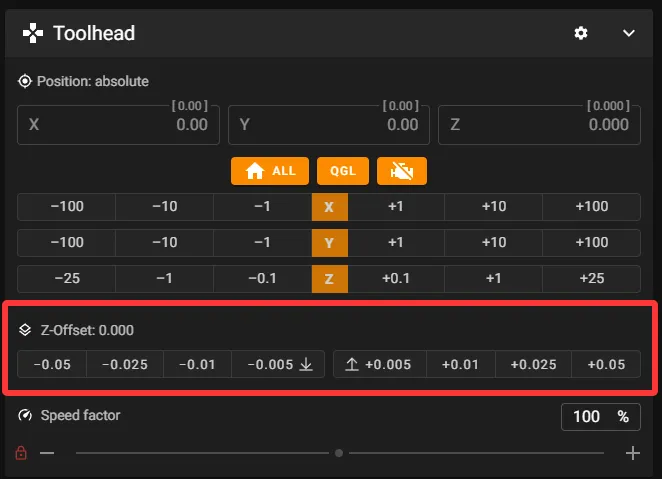
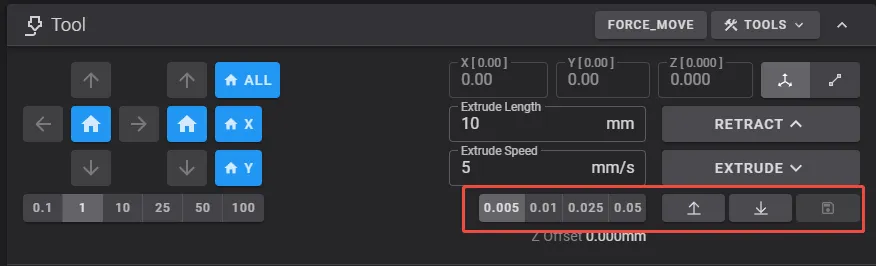
- After calibration, click Save. Please note that the save confirmation will only be shown in the console!!!!
- No need to restart
klipperafter saving!
- Repeat the Z-offset calibration several times
- To achieve a perfect first layer