Camera Connection and Usage
Note
- Plug-and-play cameras without drivers are supported by klipper under systems such as linux and armbian. No additional drivers are required.
- This tutorial uses the latest klipper, crowsnest, and fluidd as examples. If other methods are used, please research accordingly.
Important Notes
Must Read
- Settings in the configuration file will only take effect the first time the system starts after flashing.
- As the configuration process is relatively complicated, it is highly recommended to connect to the device via network and then configure through a browser.
- This tutorial only provides modifiable options.
Note
- It is recommended to use either
mainsailorfluiddweb interfaces for configuration changes. - Please do not enable browser translation, as the system may fail to start after saving.
- It is better not to enter Chinese or special characters in the configuration file.
- Changes to the configuration file will take effect only after restarting the system.
dangerous
- Do not modify any content below
######### PLEASE DO NOT EDIT THE FOLLOWING #########in the configuration file.
How to Modify the Configuration File
Modifying the Configuration File After Flashing
- Configuration options that only take effect on the
first bootmust be modified by using a professional text editor to open theconfig.txtconfiguration file located in theFlyOS-Confremovable disk immediately after flashing.
Online Configuration Modification After System Startup
-
For general configuration options, you can modify them via the web configuration interface of the system and the changes will take effect after restarting the system.
- Open the device's IP address in your browser, for example:
192.168.1.2/ - In fluidd, uncheck the option as shown in the left image below ->
Hide hidden files and folders. - In mainsail, check the option as shown in the right image below ->
Show hidden files.
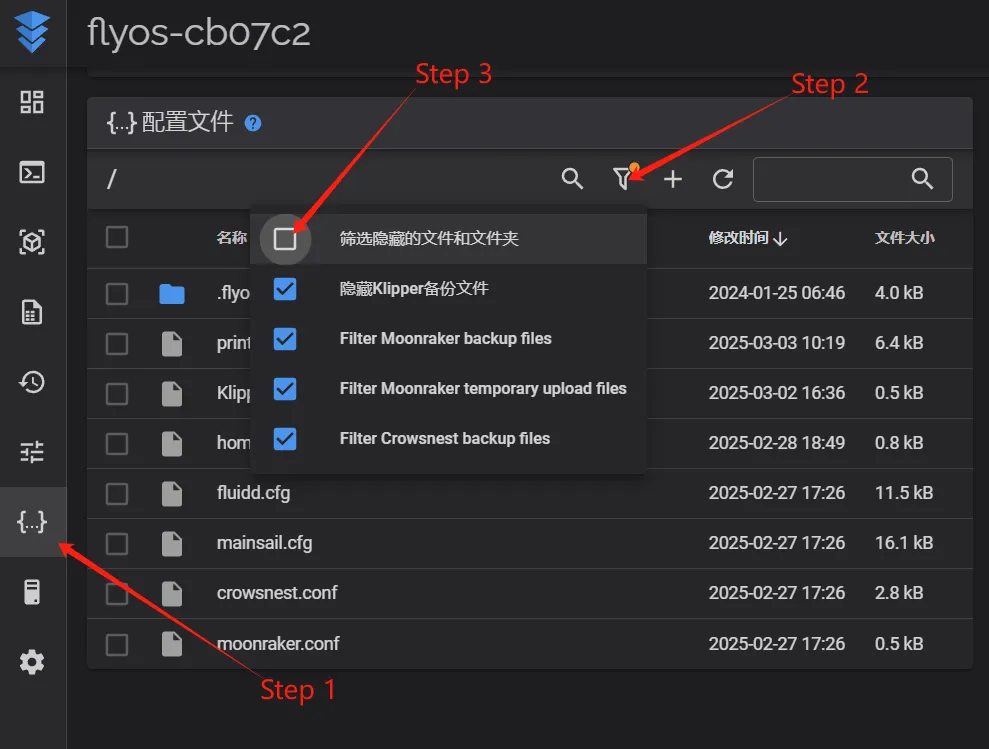
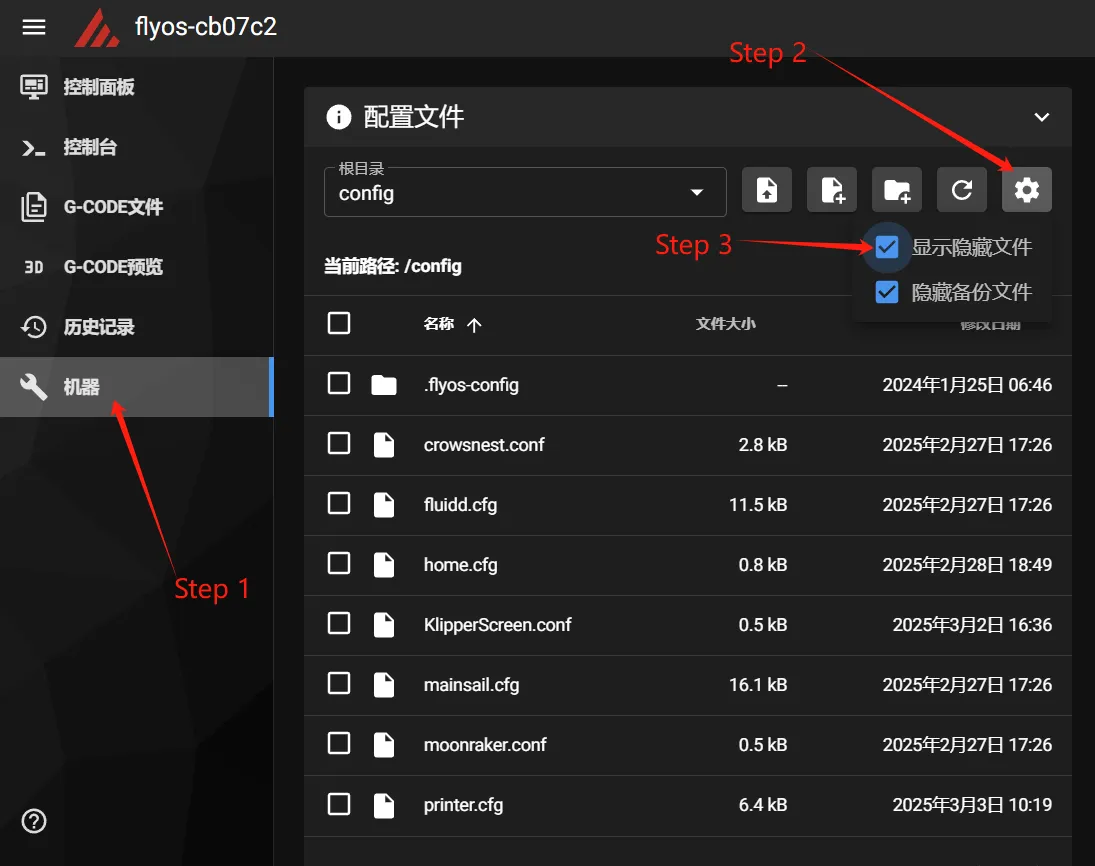
- You will now see the
.flyos-configfolder. Inside this folder there is a file namedsys-config.conf.
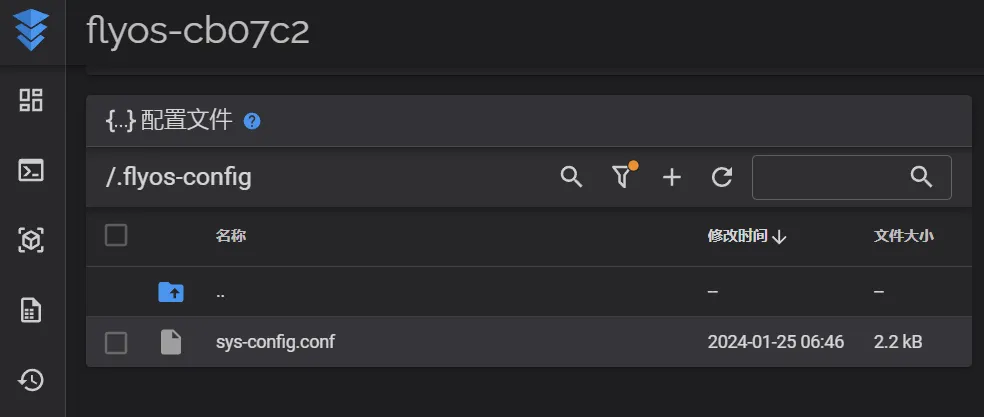
- The
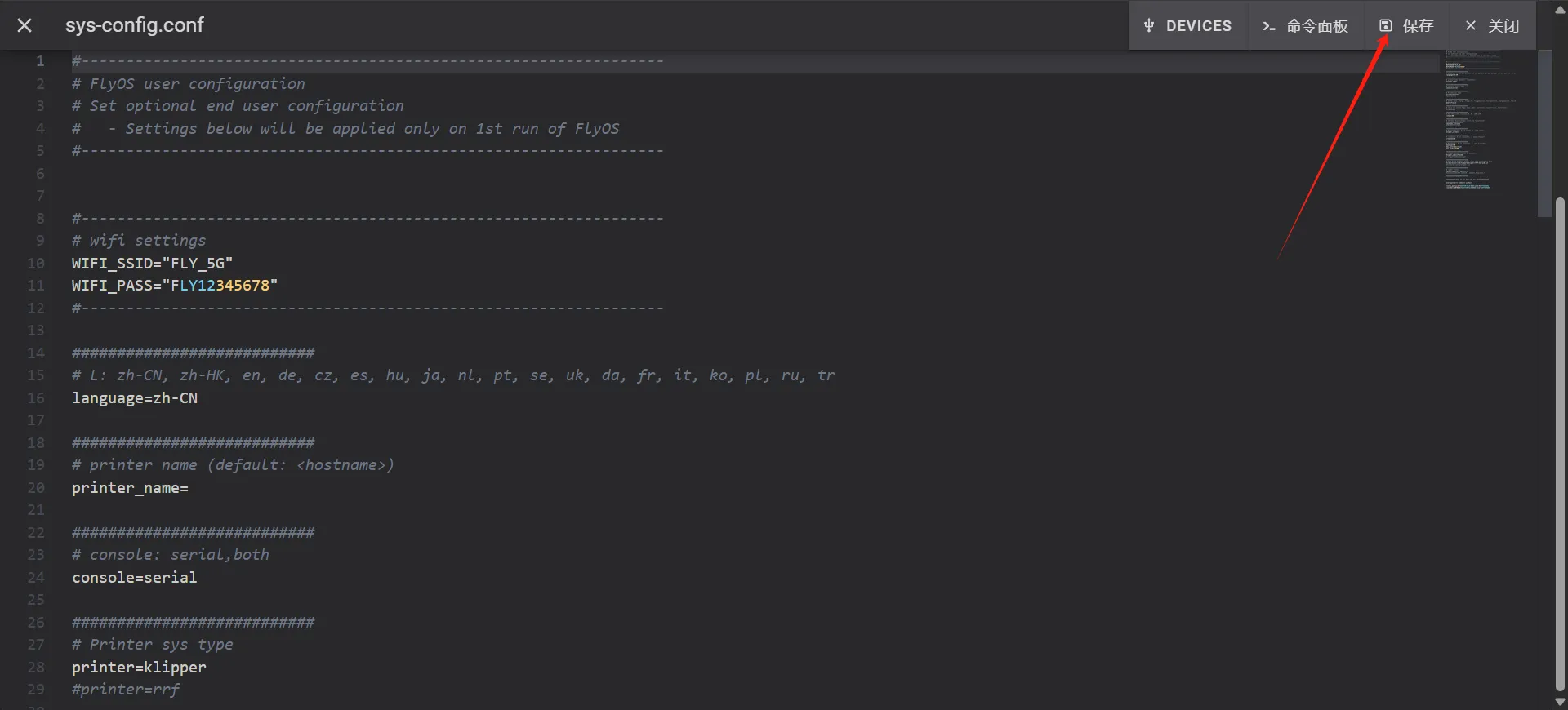
sys-config.conffile is a symbolic link to theconfig.txtconfiguration file located in theFlyOS-Confremovable disk.
-
Open the
sys-config.conffile, modify the required configuration items, thenSave->Closeand restart the system. -
Note: The format of configuration items in the
sys-config.conffile iskey=value. Do not change it tokey: value. -
After saving modifications, restart the system for the changes to take effect.
- Open the device's IP address in your browser, for example:
Enable the Crowsnest Service
- Search for
crowsnest=0in the configuration and change it tocrowsnest=1. - After making the changes, save the configuration and restart the system.
- Please note that after modifying the configuration file, the system needs to be restarted for the changes to take effect.

Open Configuration
tip
- Camera IDs vary depending on the system. We only need to determine an ID that remains unchanged.
-
In Fluidd, locate the configuration file and open
crowsnest.conf.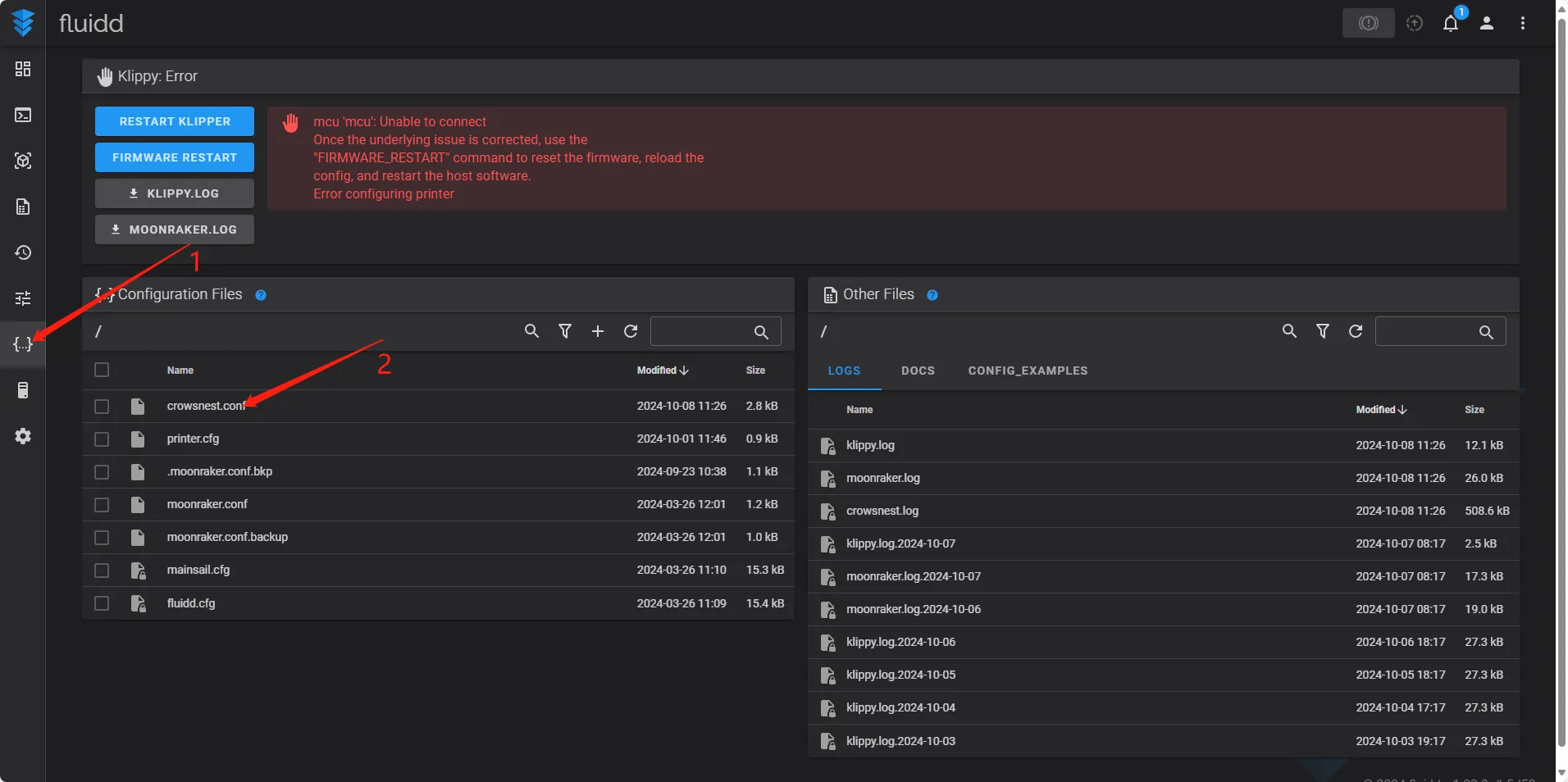
-
Find
device:, and delete the ID configuration that follows.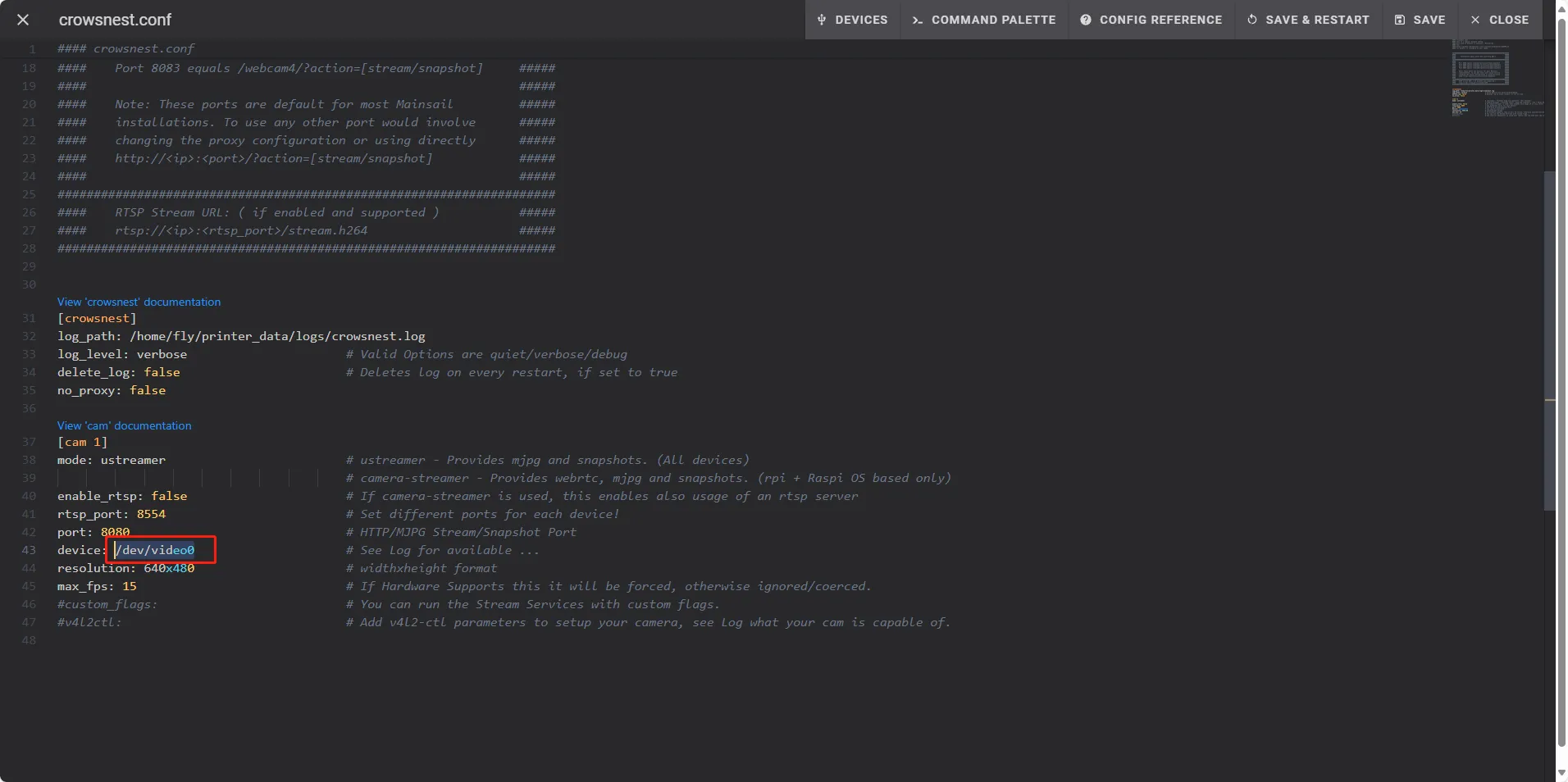
Search for Camera ID
tip
- Please ensure the camera is connected to the host computer.
- Click
DEVICESat the top, then clickVIDEO, and finally click Refresh.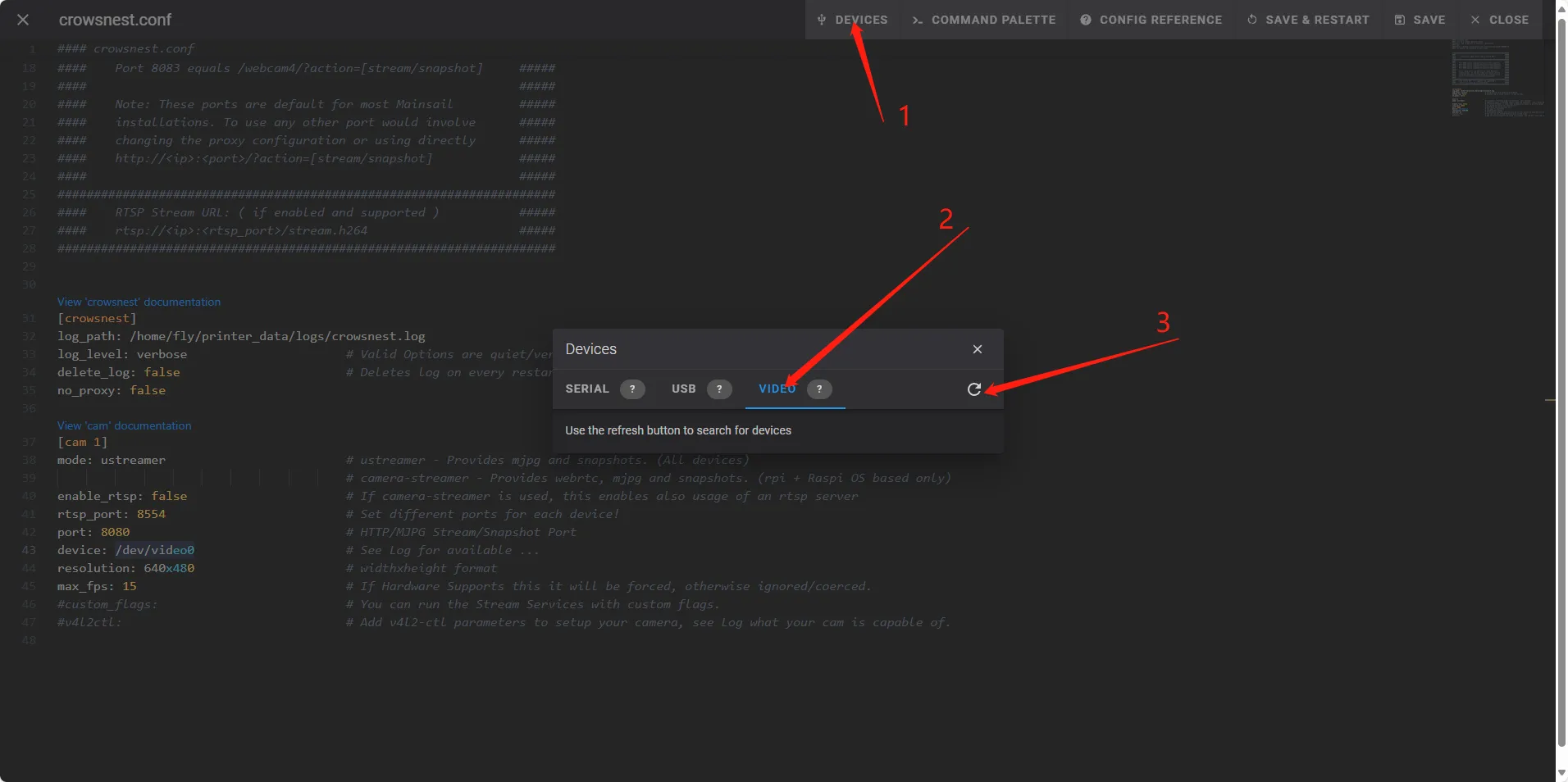
- Locate
path_by_id, and copy the line that follows.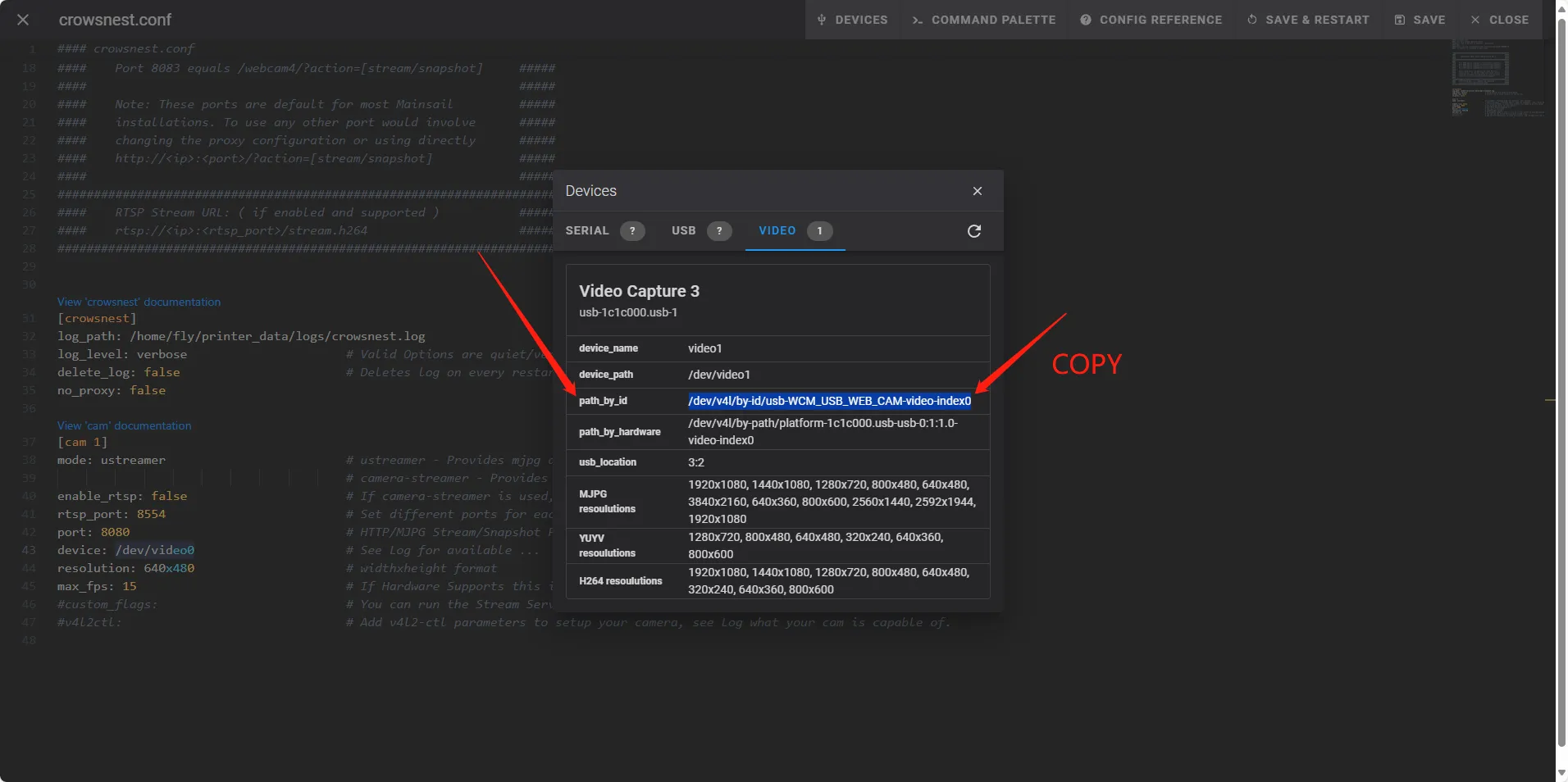
Add ID
- Add the ID and save the configuration.
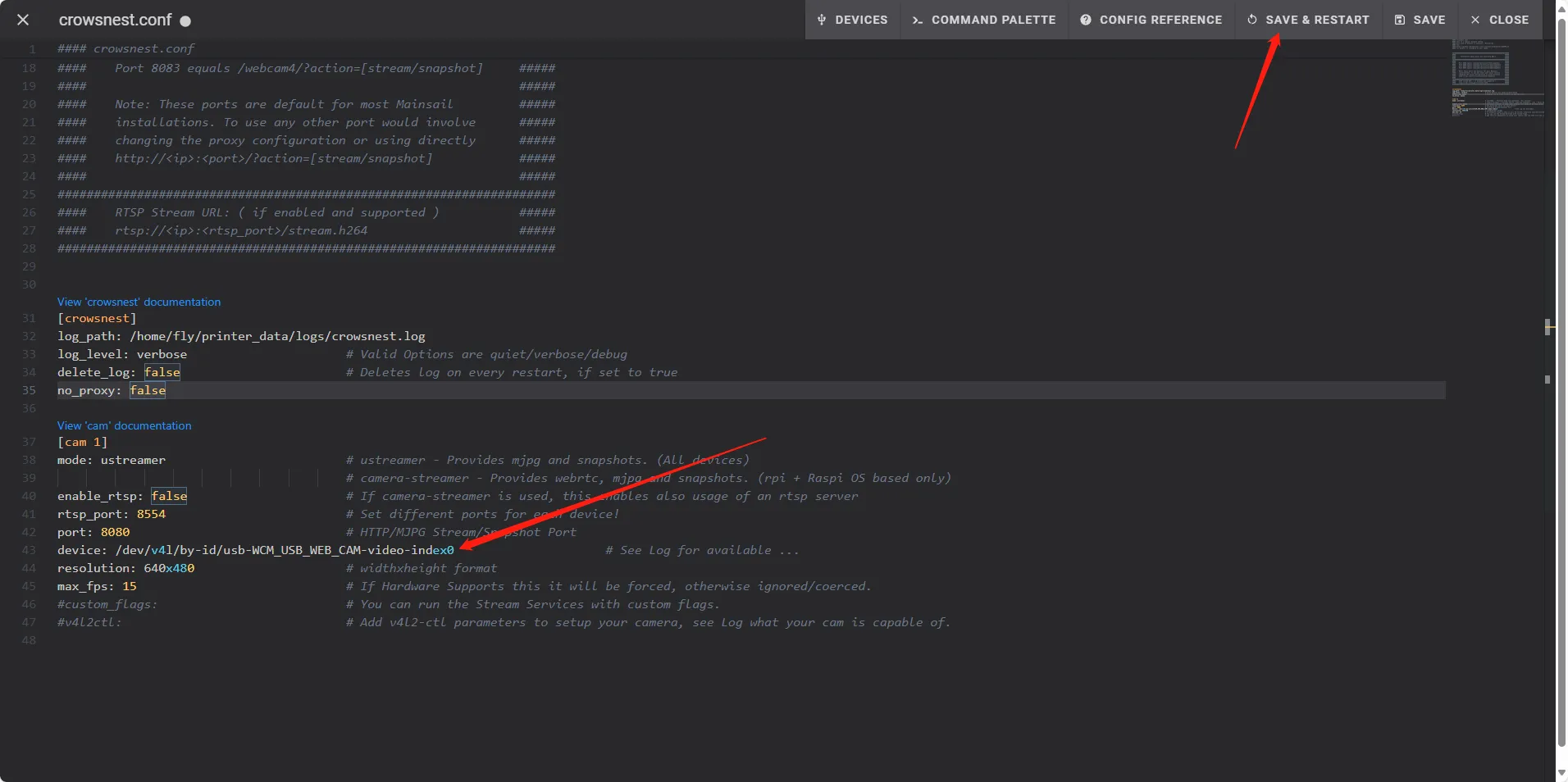
Enable the Camera
- Click Settings, select Camera, and then click Add Camera.
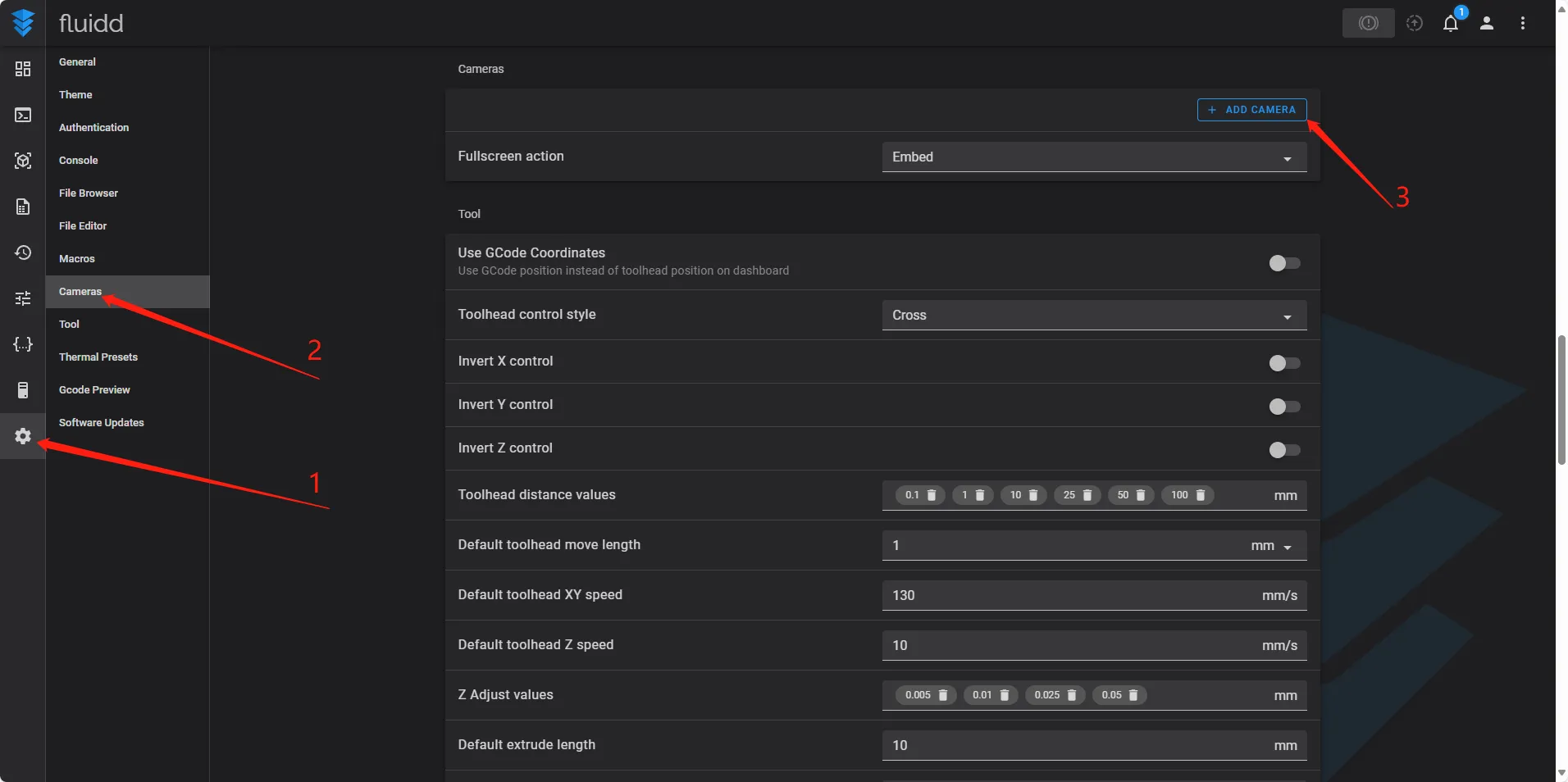
- Enter a name of your choice and click Save.
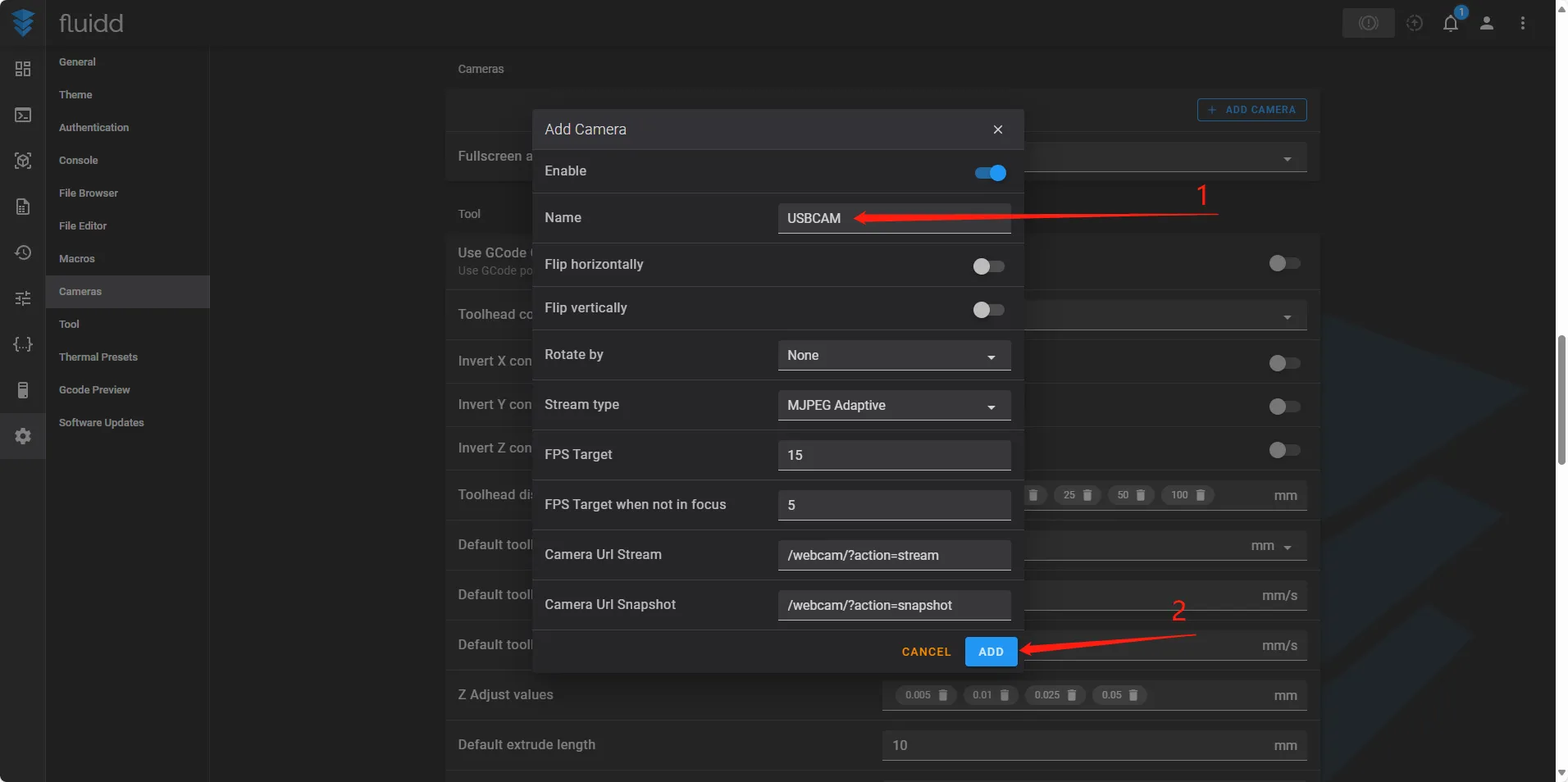
Check if the Camera is Enabled
- Click Dashboard, and the camera feed should appear normally.
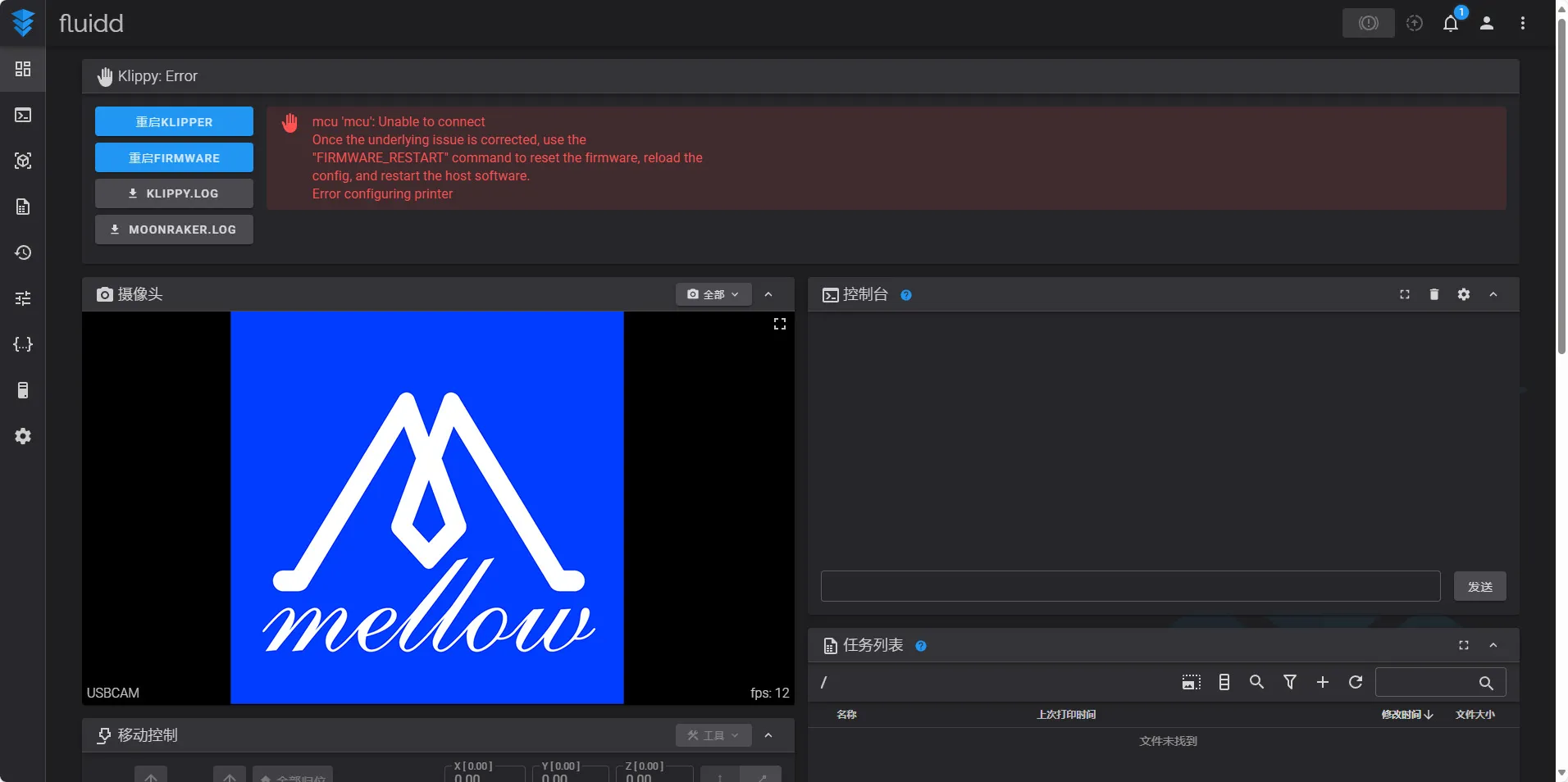
- If it does not display, restart the system again.
Loading...